 Volantis Ultima Online
Use these tables to follow the seven Paperdoll → Options tabs and learn what each choice changes. Related controls are explained together; FPS, water and Zoom also have a guide with in-game recordings.
Apply, Okay and Cancel
Before using Set as new default, save your chosen settings with Apply. That button uses the current profile, not checkbox changes that have not yet been applied.
- Default on the General tab can also change controls in other tabs, including FPS, targeting and Tab behaviour. Review those choices before applying.
- Default on the Video tab does not reset Zoom. Use Reset to 100% in the Zoom section, then press Apply / Okay.
| Button | What does it do? |
|---|---|
| Apply | Applies and saves the prepared tab settings while leaving the window open. |
| Okay | Applies and saves the values, then closes the window. |
| Cancel / X | Closes the window. It does not undo an immediately applied FPS/water choice or live edits to the macro list. |
| Default | Loads preset values into supported controls without saving them. It does not reset the Macros or Info bar tabs. |
General: movement, visibility and windows
Save the appearance and movement choices below with Apply / Okay. Apply them before using the new-default-profile button.
| Settings group | How to use it and what it changes |
|---|---|
| Always run | When enabled, suitable movement input is treated as running. When disabled, normal cursor behaviour determines walking or running. This does not grant extra movement speed or remove server limits. |
| Health displays | Toggle Show HP, then choose Percentage, Bar or Both. The display condition can be Always, Below 100% or Smart. These choices change how existing health is shown, not the target’s health. |
| Poison, paralysis and invulnerability colours | Poisoned, paralysed and invulnerable targets have separate highlight switches. Choose a hue from the colour box beside each state. Changing a colour does not apply or remove the actual state. |
| Names entering view | Toggle automatic names for characters entering view and corpse names separately. Leave only the group you want enabled. |
| Ground aura and party colour | Choose None, In combat, Ctrl+Shift or Always for the ground aura. Party aura has its own switch and colour box, so general aura visibility and party highlighting can be managed separately. |
| Hide the menu bar | Checking this box hides the toolbar. To restore it, open Paperdoll → Options, clear the box and press Apply. A checked box means the menu is hidden. |
| Moving and closing windows | Requiring ALT + right-click to close anchored windows and requiring ALT to move windows are separate choices. Closing all anchored windows on group right-click controls whether linked bars close together. |
| Skills and Status appearance | Standard Skills and the old Status layout can be selected separately. With mutually exclusive Status and your own health bar enabled, opening one closes the other; disable it to keep both visible. |
| Party invitation window | Choose whether party invitations appear in a separate invitation window. Acceptance remains your choice; this setting does not accept invitations automatically. |
| Health-bar style, persistence and closing | Enable custom health bars and choose the black background separately. Save health bars controls persistence of the layout. Automatic closing can be None, When the target leaves range or When the target dies. |
| Shift for context menus and splitting stacks | Requiring Shift for context menus and requiring Shift to split an item stack are separate boxes. Hold Shift during the corresponding action when its option is enabled. |
| Circle of transparency | Enable the circle when walls or similar artwork obscure your character. Choose a radius from 50 to 200 and a Full or Gradual appearance. This visual aid does not let you pass through walls or alter visibility rules. |
| Fades and screenshot message | Adjust object and text fade effects separately. Hide screenshot saved message only hides the notification; it does not disable taking screenshots. |
| Target distance and overhead names | Use the target-distance indicator to see distance information with the targeting cursor. Always showing overhead names and adding health bars beside those names are separate boxes. |
| Opening health bars by drag selection | Enable drag selection and optionally require Ctrl or Shift. Humanoids-only and hostiles-only filters narrow the selection. X/Y fields set where the new bars begin on screen; anchored placement arranges them as a linked group. |
| Stat and skill change messages | Toggle stat and skill change messages separately. The skill-change threshold ranges from 0 to 100; 1 corresponds to a 0.1 skill change and 10 to a 1.0 change. The threshold applies to trained base-skill gains or losses; it is neither a percentage nor a skill bonus. |
| New default profile | Save your choices with Apply before pressing Set as new default. It uses the currently applied profile, not checkbox changes that are still waiting to be applied. |
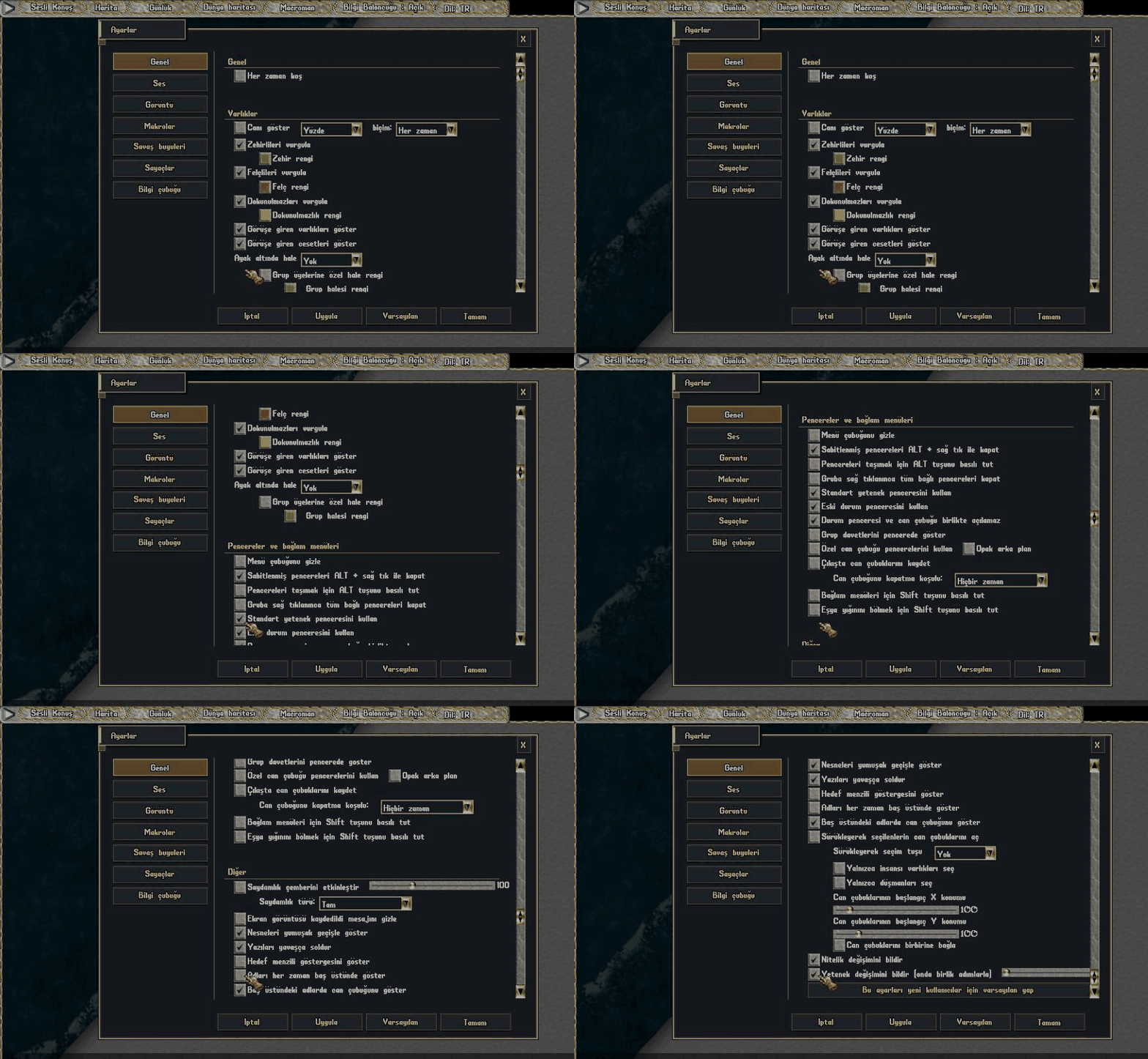
Hide and show the top menu

Sound: effects and footsteps
Save choices prepared in this tab with Apply; Okay does the same and closes the window.
| Settings group | How to use it and what it changes |
|---|---|
| Effects, volume, footsteps and background sound | Enable or disable effects and set volume from 0 to 100. Footsteps and keeping sound active when another window has focus are separate boxes. This menu has no music-enable setting. GIFs have no audio; listen in the client to check a sound change. |

Video: game area, FPS and Zoom
The Video settings guide provides step-by-step FPS, water and Zoom instructions with the existing in-game recordings. Use Apply / OK for the main fields; the water, recommended FPS and Weather effects buttons apply immediately.
| Settings group | How to use it and what it changes |
|---|---|
| FPS cap | On Windows, choose a cap from 12 to 250 and press Apply / Okay. A higher cap does not guarantee higher FPS. The separate measurement is affected by the current cap, scene and computer workload; it is not a maximum-FPS hardware test. |
| Game-area size and position | Full-area, borderless appearance and position lock are separate choices. X/Y set the starting position on screen; width/height set the game-area dimensions. Check the result after Apply / Okay. The inner game area is distinct from the outer application window. |
| Zoom and Ctrl + mouse wheel | Choose 50–200% Zoom and press Apply / Okay. Enable and apply Ctrl + mouse wheel before using it. Reset to 100% changes only the slider; Apply / Okay is still needed. Bag and world-map scales are separate. |
| Weather effects | The Weather effects: On / Off button immediately changes local weather visuals and sounds and saves the preference to your character profile. Apply / OK is not required; server weather stays unchanged. |
| Character, static-object and terrain shadows | Choose shadows and static-object shadows with separate boxes. Terrain shadow level ranges from 5 to 25. Compare the same scene after Apply; these controls affect rendering, not object positions. |

Macros: assign an action to a key
The Macros tab defines shortcut actions. Macroman on the toolbar is a separate tool that repeats keys at set intervals. An action appearing in the list does not bypass server rules or gameplay requirements.
- Use Add to create a macro, then choose its key and any Ctrl, Alt or Shift modifier.
- Select an action and enter its value when required. Use Previous / Next to switch macros and check the confirmation before deleting one.
- Save with Apply or Okay, then try the shortcut in game. Cancel does not roll back edits made to the live macro list.
| Settings group | How to use it and what it changes |
|---|---|
| Add / Delete / Previous / Next | Add creates a macro; Previous / Next move through the entries. Check the confirmation when deleting one. |
| Key and Ctrl / Alt / Shift | Choose the key, mouse/wheel input and any modifier keys. Check the warning before assigning the same shortcut to multiple macros. |
| Action / Value | Choose an action and supply its value in the selection or text field provided for that action. The final empty row lets you add another action. Apply / Okay saves macros; Cancel does not undo edits in the live list. |

Combat spells: targets and warnings
Save choices prepared in this tab with Apply; Okay does the same and closes the window.
| Settings group | How to use it and what it changes |
|---|---|
| Target system, Tab and confirmation prompts | Use new target system selects the targeting interface. Hold TAB key for combat changes Tab behaviour. Confirmation before attacking an innocent target and before helping a criminal are independent. |
| Spell text, single click, buff duration and fast assignment | Colouring overhead spell text, single-click interface buttons and showing buff/effect duration have separate switches. Fast spell assignment enables the Ctrl + Alt assignment shortcut; it does not remove mana, reagent or target requirements. |
| Damage and DPS information | Toggle the DPS display to track damage per second. Enabling it does not increase damage; actual attacks and target conditions determine the value. |
| Target and spell colours | Innocent, friendly, criminal, attackable, murderer and enemy targets have separate colour boxes. Beneficial, harmful and neutral spell text also have separate colours. These are visual distinctions only; they do not change criminal, friendship or combat status. |
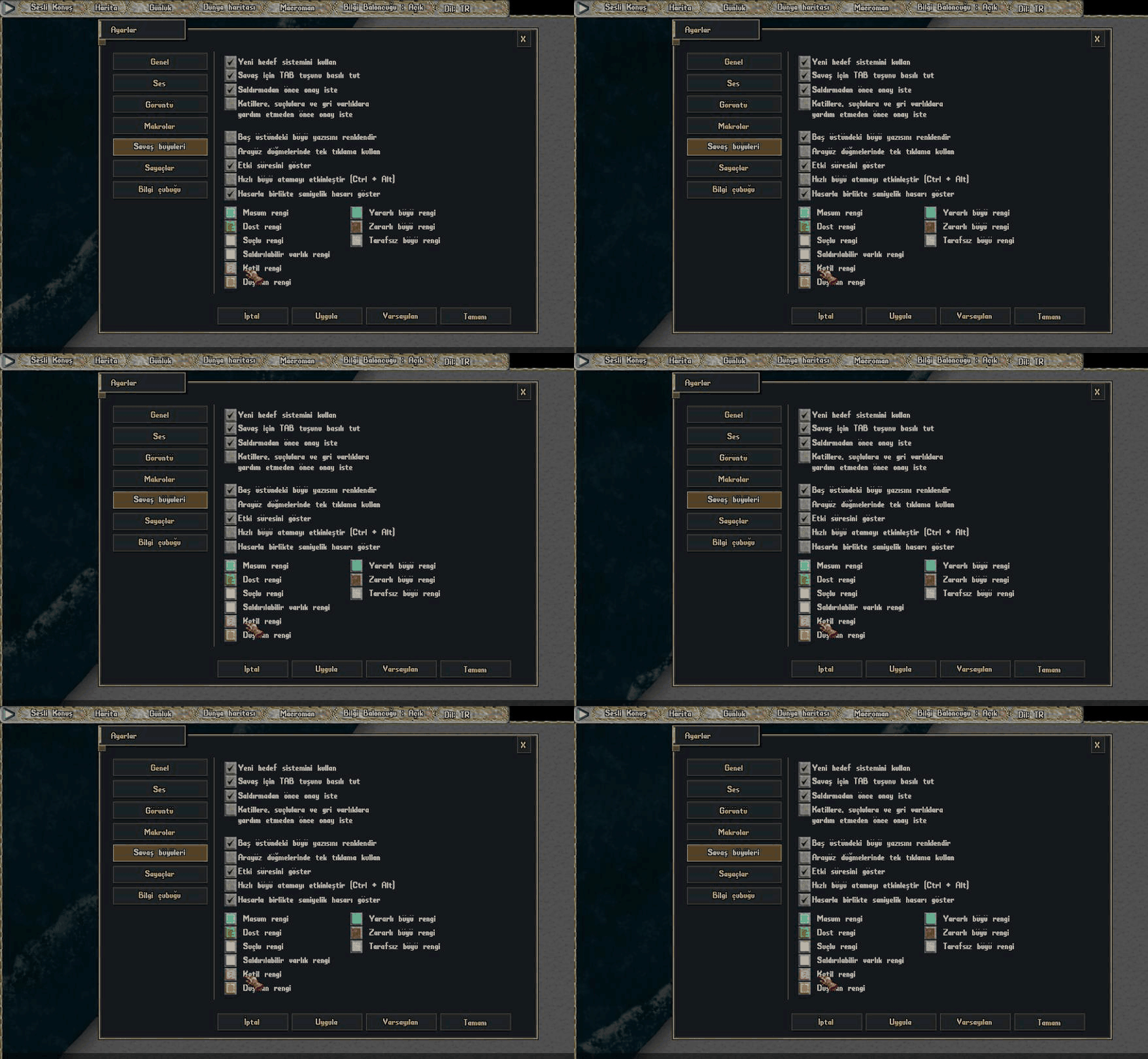
Counters: track quantities in your bag
Save choices prepared in this tab with Apply; Okay does the same and closes the window.
| Settings group | How to use it and what it changes |
|---|---|
| Item counts, thresholds and cell size | Enable counters and add the items to track. Highlight on change marks quantity changes. Enable abbreviated numbers and choose their starting threshold; separately enable low-count warnings and enter the red-highlight threshold. Cell size ranges from 30 to 80. Save with Apply / Okay. |

Info bar: customise your entries
Save choices prepared in this tab with Apply; Okay does the same and closes the window.
| Settings group | How to use it and what it changes |
|---|---|
| Show and style the info bar | Enable Show info bar and choose text-colour or coloured-bar highlighting. Add an item with a label of up to 10 characters, a colour and data such as HP/Mana/Weight, then press Apply. Press Apply again after removing an entry with Delete. |

Volantis gameplay guide during development. Characters, stock and balances shown in images are usage examples.