 Volantis Ultima Online
Measure scene smoothness, choose water and weather effects, and set a comfortable world zoom. Check below how each setting is applied.
Where do I open these settings?
- Open Paperdoll → Options → Video.
- Choose Measure FPS / water effects for measurement and water controls. Use the Zoom section on the main Video page for world zoom.
FPS measurement: 10 seconds in the same scene
This is not a test of your computer’s maximum possible FPS. The result depends on the current FPS cap, the scene and the computer’s current workload. P95 is frame time in milliseconds, not an FPS value. The suggested cap does not raise the cap used during the measurement. Losing game focus or changing the FPS cap or water selection interrupts the measurement; start it again.
- Stand in the scene you want to measure and choose your current FPS cap and display settings first.
- Press Measure 10 seconds. Keep the game in the foreground and wait for the result.
- Read the average FPS together with the P95 frame time. Repeat in the same scene with the same settings for a useful comparison.
- On Windows, press Apply suggested FPS cap if you want to use the suggestion. The measurement does not change your settings automatically.

The difference between the FPS cap and measurement
- The Windows FPS slider ranges from 12 to 250. Apply its value with Apply or Okay; choosing a high cap does not guarantee that frame rate.
- Apply suggested FPS cap in the measurement window applies and saves the cap immediately. You do not need to press Apply again in the main Options window.
- Web Client follows the display refresh rate; the button for applying a suggested cap is not shown there.
Water appearance: simple or animated
This only changes how water is rendered. Shorelines, land, walkable areas and sea-house positions stay the same. To compare performance, run a separate FPS measurement after each water selection.
- Open Measure FPS / water effects beside a shore where water is visible.
- Select Simple water and inspect the result, then compare the same shore with Animated water (default).
- Your water selection takes effect immediately and is saved to the character profile. It does not wait for Apply in the main Options window.

Weather effects: turn the local display on or off
This preference affects only your client. It toggles rain, snow, the storm overlay and lightning, dynamic snow cover and tracks, and weather-related sounds together. It does not change server weather or rain-barrel behavior; spell and combat effects and sounds remain unchanged.
- Open Paperdoll → Settings → Video → Weather.
- Press Weather effects: On / Off. The change takes effect immediately and is saved to your character profile; you do not need to press Apply / OK again.
- Turning it back on uses the weather information already received for your region without waiting for a new weather packet. The default is On.
Zoom: move closer to or farther from the world
Zoom does not change your character’s position, movement speed or server interaction ranges. The bag’s − / + buttons scale container views; the world map’s wheel controls its separate map window.
- Choose a value from 50% to 200% under Options → Video → Zoom. A higher percentage makes the game world appear larger.
- Press Apply to change the view; Okay applies the same choice and closes Options.
- To zoom with Ctrl + mouse wheel, enable that option and press Apply. Then hold Ctrl and turn the wheel over the game world.
- Reset to 100% sets the slider to 100%. Press Apply or Okay afterwards to change the world view.
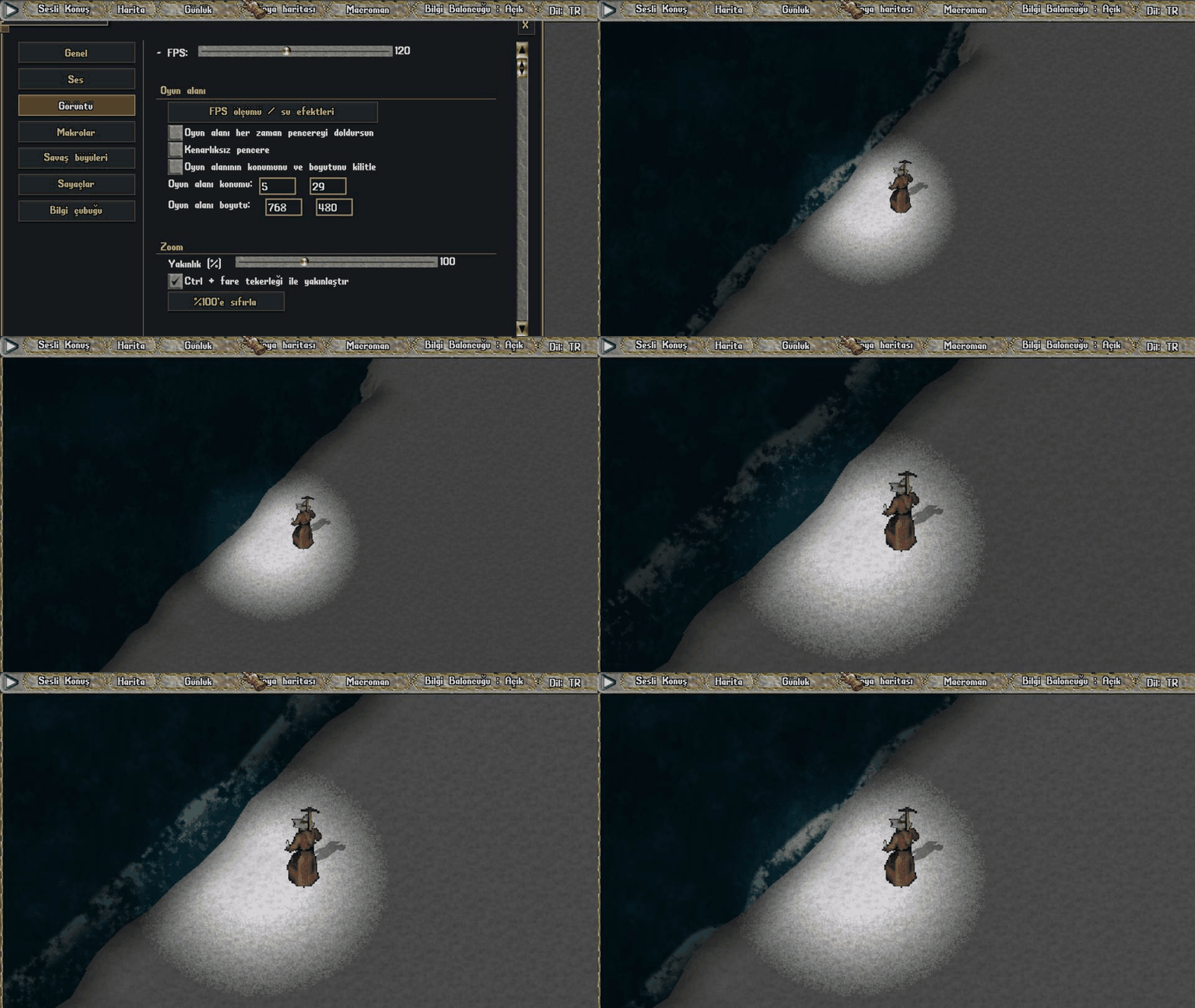
Reducing Zoom
Lower the percentage and press Apply / Okay to see more of the surrounding world. This example changes from 150% to 75%. Bag and map scaling remain separate.

Character shadow

When does each change take effect?
| Setting | Applying the change |
|---|---|
| FPS slider | Apply / Okay |
| Apply suggested FPS cap | Applied and saved as soon as you press the button. |
| Simple water / Animated water | Applied and saved as soon as you press the button. |
| Weather effects | Applied and saved as soon as you press the button. |
| Zoom / Ctrl + mouse wheel | Apply / Okay |
| Reset to 100% | Changes the slider first; Apply / Okay is still required. |
Volantis gameplay guide during development. Characters, stock and balances shown in images are usage examples.